WordPress SEO Plugins
WordPress has been one of the most popular and best content management system that people use to build their own web. After making websites, it's also a great platform for blogging. Mostly, every blogger uses WordPress to manage their own self hosted blogs. WordPress is on the no.1 because it has great and amazing helpful features. A user can do any kind of tweaks in WordPress as he wants but sometimes it might require self made coding.

Well, WordPress is also perfect in SEO. By default, there are not any SEO features in WordPress but many great WordPress SEO Plugins are available that make the WordPress SEO easier. So, Today we're going to discuss about some top best WordPress SEO Plugins.

Why To Use WordPress SEO Plugins?

If you're completely new about SEO and also specially with WordPress than you must have a read on this passage. SEO stands for search engine optimization and every webmaster usually optimize their webs for search engines in order to get organic search traffic. If you want to drive high traffic through search engines than you need to optimize you web for search engines while plugins help us to optimize our blog. SEO can also be done manually but in order to save time and do work properly WordPress SEO Plugins are important to use.

1. WordPress SEO By Yoast

WordPress SEO By Yoast
This is one of the most popular and best WordPress SEO Plugin that is being used by almost every blogger. This comes with both free and premium versions. WordPress SEO by Yoast let you create web pages and blog posts search engine friendly and also optimize them to rank better in SERP. You can call this plugin all rounder because this plugin manages every single thing of SEO. The most needed features that you'll get with this plugin are XML sitemaps, page analysis, Meta and Link elements, permalink, breadcrumbs, RSS optimization, Google rich snippets, Social Integration and many more. Other than this, they're many free guides with video tutorials are available on the web about the proper usage of this plugin.

2. All in One SEO Pack

All in One SEO Pack
Another most popular WordPress SEO plugin that has got more than 20 million downloads is known as "All in One SEO Pack". Some people refer for WordPress SEO By Yoast and some also refer for All in One SEO Pack. These two plugins are top tending plugins. As its name proves, This plugin has every feature that any SEO expert will require. Its developers say that this plugin automatically optimize your WordPress website for search engines such as Google, Bing and Yahoo. Currently, It has 2.1.3 most recent updated version which have some features including XML sitemaps, Google Analytics, Advanced canonical URLs, Fine tune page navigational links, Built in API, automatically optimize titles and meta tags and many more.

3. SEOPressor

SEOPressor
This is the third best WordPress SEO Plugin that is paid not free but also has some different features from above mentioned plugins. This plugin is best to do on-page SEOof your WordPress site this plugins looks like a manager which commands you to properly optimize your WordPress site for search engines. It gives real-time recommendation while writing articles about keyword density, keyword targeting, meta tags, image optimization, over optimization and also scores the post after the analysis. Try to get highest score while using this plugin in order to rank better in search engines. It also gives some keyword suggestion that will help you to target highly searched keywords and gain the best traffic.

4. RB Internal Links

Internal linking is important factor these days as it helps to call crawler to crawl your web more and more times. Internal linking also helps you to target keywords easily and rank better in SERP. RB Internal Links seems good and also popular WordPress SEO plugin that helps you to do internal linking of your WordPress site easily. Unfortunately, This plugin has not been updated for 2 years but it may still work cool. This plugin doesn't make use of URLs or Permalinks to do internal linking but it users post and page IDs to do internal linking that is a great thing actually. If the URL gets changed in a sudden time than it wont affects on internal links because that plugin uses IDs and saves from 404 error pages.

5. Google XML Sitemaps

Google XML Sitemaps
Having a great XML sitemaps that may fetch new posts and ping Google for index is important for every site or blog. WordPress plugins lab provides you an exclusive plugin that creates the XML sitemaps of your WordPress site specially for Google. If Google is gonna accept such sitemaps that other search engines will probably do it. This plugin has 3.4 most recent version that is absolutely free to download. Google XML sitemaps share hands with you to create easily create XML sitemaps in which posts, pages, categories and tags pages can be included and you'll have full control to moderate them. 

6. SEO Friendly Images

SEO Friendly Images
Images are also an important content on our sites as they help us to improve user interface, beautify blog and also we use them as "Content" purpose. Well, search engines are also always interested in great images that they find while crawling the webpages. You might have seen image search engines and you know from where do they get those images?  Those images are also taken from webpages like our sites that use images. Well, the images in our sites can also be optimized for search engines to rank better in image search. SEO Friendly Images lets you optimize your images with alt and title tagsautomatically. Actually, It may take image name as alt and title tag.

7. Scribe For WordPress

Scribe For WordPress
Scribe for WordPress is another most powerful WordPress SEO Plugin that comes with premium version only. This plugin gives you some powerful content marketing tools that helps you to create ever killer content directly from your WordPress post editor. This plugin is great for business and as well as for personal small blogs also. The content that is created with the help of this plugin definitely goes viral and helps your to blog toincrease Page Rank, Domain Authority, Page Authority and some other important SEO factors. Means it also makes the content that is suitable for search engines completely. After SEO this plugin is also useful for social promotion purpose as there are also some useful tools that helps you to easily drive traffic through social media networking.

8. SEO Rank Reporter

SEO Rank Reporter
Keeping track of search engine rankings is not much important as sometimes low rank can loose energy to work harder but sometimes high rank also boosts our energy to work even more harder. Well, The thing that I do is just concentrate on creating more and more content only that actually helps to drive every kind of traffic. If you're interested to have track of your search engine rankings than this is powerful plugin for you that will report you the ranking reports. This plugin displays data in graph and also have some more functionality. It gives you the report of every 3 days. Its free and most recent version is 2.2

9. Simple 301 Redirects

Have to redirect a big list of 404 pages or broken URLs? This plugin made it easy for everyone who doesn't know how to edit and redirect URLs manually through .htaccess file. Its too tough to do 301 redirect through .htaccess and also needs to have much knowledge about coding. But who cares if you've simple 301 redirects plugin. You can easily redirect high number of URLs with 301 type.

10. Googlyzer

Do you use Google Analytics to track visitors analysis? No doubt, Google Analytics is best tool for counting visitors but do you get fed up of going out again and again from your WordPress dashboard to check reports? Googlyzer made it easy to check Google analyticsreports directly from your WordPress dashboard. This plugin helps you to integrateGoogle Analytics data and display it in your dashboard. You can install tracking code, check multiple graph reports and also create reporting widgets with this plugin.

Source
Instagram
Let's be honest. You are not a blogger 24/7. Sometimes you like to live life a little and capture moments. "The best camera is the one that is with you," uttered world renowned photographer Chase Jarvis.

Our smartphones accompany us everywhere. We use our phones to text. We use our phones to listen to music. We use our phones to watch videos. We use our phones to play games and we use them to take pictures

iPhonegraphy, is a popular form of photography that revolves around pictures taken with the iPhone. Our trusty devices give us the opportunity to be creative and take pictures anywhere and with ease. I am going to show you how easy it is to add an Instagram Widget to your Blog.

Why add an Instagram Widget In Blogger?

You have to understand that we are a visual society. Pictures and videos are shared more than any other medium. The highly popular mobile based social network, Instagram, works like Twitter but your updates are strictly photo based. 

As a blogger this gives you the opportunity to showcase your personality beyond the words that you type. Instagram also gives you the power to showcase your business and other hobbies. 

If you excel at designing blogs, for example, Instagram gives you the opportunity to share your work flow, your work station and even new templates. 

The possibilities are endless. 

How to Add An Instagram Widget In Blogger

  1. Go to Template >> Click Backup / Restore Button >> Download Full Template (In case you messed up)
  2. Go to Layout >> Add Gadget >> Select HTML/Javascript 
  3. Open another Tab >> Go to Instagme website - http://www.intagme.com/
  4. Put in your username >> Select Grid or Slideshow (Grid will have them show up like they do on Instagram while Slideshow is just a slideshow of your images)
  5. Select your Thumbnail size (100 px is the default) >> Select whether you want a Photo Border or not
  6. Decide if you want to change the Background Color 
  7. Preview your creation. If you like it select Get Code
  8. Copy the code into the HTML/Javascript section and save the widget 
  9. Preview your page layout. If you like it Save Arrangement
  10. This widget updates as you update your Instagram
Note : The best place for this widget is the sidebar. 

Final Words

Instagram appeals to professionals and amateurs alike. 

You can really spice up your blog with this addition. Remember that Instagram was bought out by Facebook so you can let your Facebook followers know that you have an Instagram account.

Source
In my opinion, AddThis is the most complete social sharing service allowing to share your posts in more than 270 different social networks. I use the AddThis widget, so if you would like to see a live demo, please scroll down to the buttom of this post to see the AddThis sharing buttons.


This tutorial will show you how to register and add this feature on your blog and you will get to know some of the customization options of these buttons. So let's get started!

Getting the AddThis share buttons code

Step 1. Visit the https://www.addthis.com/get/sharing page.
Step 2. To get the sharing buttons and to access the AddThis sharing stats to find out how many people shared your post by using the AddThis feature, click on the "Create account" button.

create addthis account

The site will ask you to make a small registration. Fill out the information to register. It's quick, simple and it's free. To finish the registration, click on the Register button.

register addthis

Step 3. After you've been logged in, right below the "Get sharing buttons for", choose the "A website" option.

addthis share buttons

Step 4. In the "Select style" section, choose the buttons style that you think would look the best on your site/blog. Please note that on the right side you can see a preview of these buttons.

addthis sharing buttons

Step 5. After you have chosen the style, the site will provide a code - click on the "Grab it" button to copyit.

addthis code

The code provided will look like this:
 <!-- AddThis Button BEGIN -->
<div class="addthis_toolbox addthis_default_style ">
<a class="addthis_button_facebook_like" fb:like:layout="button_count"></a>
<a class="addthis_button_tweet"></a>
<a class="addthis_button_pinterest_pinit" pi:pinit:layout="horizontal"></a>
<a class="addthis_counter addthis_pill_style"></a>
</div>
<script type="text/javascript">var addthis_config = {"data_track_addressbar":true};</script>
<script type="text/javascript" src="//s7.addthis.com/js/300/addthis_widget.js#pubid=ra-XXXXXXXXXXX"></script>
<!-- AddThis Button END -->

Now that you have selected and set up your AddThis sharing buttons, it is recommended to add them in the footer of your posts...

Adding the AddThis sharing buttons on Blogger

Step 1. Access your Blogger Dashboard and go to Template, then click on the Edit HTML button on the right:

blogger template

Step 2. Click anywhere inside the code area and press the CTRL + F keys to open the search box.

Step 3. Type the following line inside the search box and hit Enter to find it:
 <div class='post-footer'> 
Step 4. Just above this line, add the code for the AddThis social sharing buttons.

Note: If you want to add at the beginning of your posts, add the code below the second <div class='post-header'>

Adding more buttons

To add more buttons, simply choose the button for that social network and add the code just above the</div> tag (see step 5 above).

Some examples:
 <a class="addthis_button_linkedin"></a> /* linkedin button */
<a class="addthis_button_google_plusone" g:plusone:size="medium"></a> /*gplus button */
<a class="addthis_button_digg"></a> /* digg button */
<a class="addthis_button_stumbleupon"></a> /* stumbleupon button */ 
<a class="addthis_button_print"></a> /* print button */

CSS3 AddThis Share Buttons

You can add just a single button, so that when the reader hover over it, a menu will open with the options of social networks to share the post.

css3 share buttons, addthis

Visit this page for a demo.

Step 1. Go to Template > click on the Edit HTML button > press the CTRL + F keys and search for the<div class='post-footer'> line. Just above this line, paste the following code:
 <style type='text/css'>
.addthis_share_btn a, .addthis_share_btn a:visited {
background: #FF5C00/* background color of the button */
display: inline-block;
padding: 6px 12px;
font-family: arial,helvetica,lucida,verdana,sans-serif;
font-size: 12px;
line-height: 1em;
color: #fff;
text-decoration: none;
-moz-border-radius: 5px;
-webkit-border-radius: 5px;
-moz-box-shadow: 0 1px 3px rgba(0,0,0,0.5);
-webkit-box-shadow: 0 1px 3px rgba(0,0,0,0.5);
border-radius: 5px;
box-shadow: 0 1px 3px rgba(0,0,0,0.5);
text-shadow: 0 -1px 1px rgba(0,0,0,0.25);
border-bottom: 1px solid rgba(0,0,0,0.25);
position: relative;
cursor: pointer;
}
.addthis_share_btn a:hover {
background: #D45500/* background color on mouse hover */
color: #fff;
}
.addthis_share_btn a:active { top: 1px; }

.addthis_share_btn a span, .addthis_share_btn:visited a span {
background: url(http://www.addthis.com/cms-content/images/gallery/icon-addthis.gif) no-repeat left;
padding: 1px 0 1px 18px;
}
</style>
<!-- AddThis Share Button -->
<div class='addthis_toolbox addthis_share_btn'>
<a class='addthis_button_compact' href='http://addthis.com/bookmark.php'>
<span>Share</span></a>
</div>
<script src='http://s7.addthis.com/js/250/addthis_widget.js' type='text/javascript'/>
<!-- End AddThis Share Button -->
Customization 

- To change the color of the button according to the colors of your template, modify the color value in red.
- If you want to change the "Share" text, replace the text in blue.

Step 2. Save the changes by clicking on the Save template button and you're done!

Source
If you want to available chat with particular friends but not others or chat with only few friends or Turn off Facebook chat for all friends follow this all video tutorial
In today's video tutorial Learn about How to Disable Popup in Google Chrome Browser When you open any website sometime other pop up page are showing so if you want to turn off popup in your chrome browser follow this step.. Open your google chrome browser.. Click on the wrench icon to the right of your address bar From the menu drop down menu, click on settings Show advance Setting Privacy and select content setting find the popup.. and enable Do not allow any site to show pop-ups (recommended)
How to Remove Facebook Search History | How to clear Facebook Search History | How to Delete Facebook Search History check this video for easily remove-delete your facebook search history
Back To Top
How to add smooth scrolling back to top button for website & blogger. Animated back to top button in blogger/website is one of the best Jquery style animated widget that looking good and also visitors enjoy easy site navigation scroll to top.

The best thing about this button is that it appears only when the user scrolls down the page and disappears as he scrolls up, and also one more feature of this script you can add your own image that you like.

Scroll this page to Bottom and See Demo at bottom right

How to Add Smooth Scroll to Top with Jquery ?


1. Go To Blogger > Layout
2. Add a Gadget Choose HTML/JavaScript widget
Paste the following code inside it

JQuery Code. if you can already add jquery plugin into your website or blog then skip first code. and if you not add already then add this code with scroll to top script.
<script src='http://ajax.googleapis.com/ajax/libs/jqueryui/1.8.23/jquery-ui.min.js' type='text/javascript'></script>
Scroll to Top Code.

<script type="text/javascript">
var scrolltotop={
//Modified by bloggerknown.blogspot.com more JQuery Scroll to Top Design
//startline: Integer. Number of pixels from top of doc scrollbar is scrolled before showing control
//scrollto: Keyword (Integer, or "Scroll_to_Element_ID"). How far to scroll document up when control is clicked on (0=top).
setting: {startline:100, scrollto: 0, scrollduration:1000, fadeduration:[500, 100]},
controlHTML: '<img src="IMAGE LINK" />', //HTML for control, which is auto wrapped in DIV w/ ID="topcontrol"
controlattrs: {offsetx:5, offsety:5}, //offset of control relative to right/ bottom of window corner
anchorkeyword: '#top', //Enter href value of HTML anchors on the page that should also act as "Scroll Up" links
state: {isvisible:false, shouldvisible:false},
scrollup:function(){
if (!this.cssfixedsupport) //if control is positioned using JavaScript
this.$control.css({opacity:0}) //hide control immediately after clicking it
var dest=isNaN(this.setting.scrollto)? this.setting.scrollto : parseInt(this.setting.scrollto)
if (typeof dest=="string" && jQuery('#'+dest).length==1) //check element set by string exists
dest=jQuery('#'+dest).offset().top
else
dest=0
this.$body.animate({scrollTop: dest}, this.setting.scrollduration);
},
keepfixed:function(){
var $window=jQuery(window)
var controlx=$window.scrollLeft() + $window.width() - this.$control.width() - this.controlattrs.offsetx
var controly=$window.scrollTop() + $window.height() - this.$control.height() - this.controlattrs.offsety
this.$control.css({left:controlx+'px', top:controly+'px'})
},
togglecontrol:function(){
var scrolltop=jQuery(window).scrollTop()
if (!this.cssfixedsupport)
this.keepfixed()
this.state.shouldvisible=(scrolltop>=this.setting.startline)? true : false
if (this.state.shouldvisible && !this.state.isvisible){
this.$control.stop().animate({opacity:1}, this.setting.fadeduration[0])
this.state.isvisible=true
}
else if (this.state.shouldvisible==false && this.state.isvisible){
this.$control.stop().animate({opacity:0}, this.setting.fadeduration[1])
this.state.isvisible=false
}
},
init:function(){
jQuery(document).ready(function($){
var mainobj=scrolltotop
var iebrws=document.all
mainobj.cssfixedsupport=!iebrws || iebrws && document.compatMode=="CSS1Compat" && window.XMLHttpRequest //not IE or IE7+ browsers in standards mode
mainobj.$body=(window.opera)? (document.compatMode=="CSS1Compat"? $('html') : $('body')) : $('html,body')
 mainobj.$control=$('<div id="topcontrol">'+mainobj.controlHTML+'</div>')
.css({position:mainobj.cssfixedsupport? 'fixed' : 'absolute', bottom:mainobj.controlattrs.offsety, right:mainobj.controlattrs.offsetx, opacity:0, cursor:'pointer'})
.attr({title:'Scroll to Top'})
.click(function(){mainobj.scrollup(); return false})
.appendTo('body')
if (document.all && !window.XMLHttpRequest && mainobj.$control.text()!='') //loose check for IE6 and below, plus whether control contains any text
mainobj.$control.css({width:mainobj.$control.width()}) //IE6- seems to require an explicit width on a DIV containing text
mainobj.togglecontrol()
$('a[href="' + mainobj.anchorkeyword +'"]').click(function(){
mainobj.scrollup()
return false
})
$(window).bind('scroll resize', function(e){
mainobj.togglecontrol()
})
})
}
}
scrolltotop.init()
</script>

Replace IMAGE LINK with the image link of your back to top button.we have collect some of back to top button you can also get here. If you want to add image link then right click the buttons below and select "Copy image location" and add this link:

Collection of Back to Top buttons.

back to topback to topback to topback to topback to topback to topback to topback to top

3. Save the widget and drag it near the footer or any bottom position.
4. View your blog to see the magic.

I hope this little trick work on all, if any problem then post comments for help others. share with frineds :D

optimize blog for mobileMake Blogger ready for Mobile Phones

In this day we can not ignore the importance of mobile internet. Because almost all of us have to use the mobile, and make easy to use internet access. And every internet provider company trying to provide best internet services like 3G's , Wifi, mobile apps,etc.

So many of your blog readers come through mobile phones. and our website is compatible for mobile phone browsers. But if you don't make the mobile friendly blog, then we have to lose a lot of mobile readers, because in a mobile phone, a normal blog takes lot of time to load and there are different problems that your website not fitting properly within the mobile screen.


Start working and make mobile friendly blog. sign in to your blog first.

Step No.1

Go to Blogger account > Template > Mobile

Blogger Templates

After click setting button a popup windows open clik "Yes. Show mobie template on mobile devices. and also choose mobile template and Save.

mobile template

Step No.2

Find this line >
<b:include data='blog' name='all-head-content'/>
And paste this code below that line...
<meta content='IE=EmulateIE7' http-equiv='X-UA-Compatible'/>
<b:if cond='data:blog.isMobile'>
<meta content='width=device-width, initial-scale=1.0, user-scalable=0' name='viewport'/>
<b:else/>
<meta content='width=1100' name='viewport'/>
</b:if>
Save Changes!

Now your blog ready for mobile browser with good speed. visit your blog for mobile view add ?m=1 tag in url example = http://bloggerknown.blogspot.com/?m=1

Thank you for your time for read this post i hope you like this post.
There are many website allows services to shrink URLs. URL-shortening services allow you to make cash when you use them to shorten long URLs from various websites. you can post shortened URLs on your blog, website, Twitter, Facebook or any other social network when belong to. once your visitors click on the shortened URLs, you can generate income from every click-through. Basically short URL works as a redirection service which is able to redirect the shorter URL to the supposed web page.

How Can you Earn Cash from this URL shortening providers ?
  • Sign up with desired universal resource locator shorterner provider (List Below).
  • Copy your links and make short URLs from your account.
  • Share your short URL anyplace with your friends, social media, websites, download links.
  • Whenever somebody click those shortened links,  they will go through some short 5 to 15 seconds advertisements(for e.g. below).
  • After this he will skip the ad and look at the link that was hidden behind that short link.
  • Thats it, whenever somebody go through this advertisement once clicking, you’re paid.

Top best shorten URL website to earn money


Adf.ly is a world largest web site that allows you to shrink your URL, it's not different from alternative such websites like goo.gl, bitly.com, tinyurl.com, however difference is that they can give you a fix part of cash against and they and that they have ad twist. They're going to offer you $5 against 10,000 visitors, mean to say that if 10,000 peoples visits your shrink URL then they will give you $5.
Payout = 5$

2. Cashfly.com

We're a free web link shortening service with a twist. Every time one of your links is shared with someone else on the Internet, you get paid! It's that easy, simply register for an account then start linking. Each time someone visits one of your links - YOU GET PAID.


3. LinkBucks.com

LinkBucks allows you to make cash from the links your users post, from the links you place on your website, or from the posts you make in a forum. It is simple and easy to get started making money Today!


4. Adlock.in

Adlock is a url shortening website . Shorten your long URL to adlock.in/xxxx and start earning


5. bee4.biz

bee4.biz is a free short URL redirection service with a twist. Get paid for every link you share on the Internet. You can place links on FaceBook, Twitter, forums, and anywhere you share links!

All sites are good but i prefer adf.ly because this is more trusted and i get paid many time .

Sevida - Responsive Magazine Blogger Template Free Download


Sevida is the premium responsive blog and magazine template for Blogger fans. This template shows you how cool and flexible Blogspot magazine template can be.


Sevida Blogger Template Features


  • Responsive Design
  • Auto Featured Post from JSON (Slideshow) *
  • Manual Featured Post Work with Image Widget(Slideshow) New
  • Support Advance Editor
  • Lightweight Auto read-more support third party image and youtube (option make it slideshow) New
  • Ajax load more post
  • Ajax Page Navigation New *
  • Cool blogger threaded comment (Support Google+ Comment)
  • JSON Search Result *
  • Lightweight Summary (option make it slideshow)
  • Two View Mode (List and Grid) width Cookies
  • Recent Comment Widget *
  • News Ticker Widget *
  • Related Post Widget *
  • Recent Post by Labels (3 Post Type (Slider, Vertical, Horizontal) support Random) New *
  • Optimize SEO
  • Archive Page *
  • Emoticon
  • Dropdown Menu
  • Top Social Icon
  • Custom Error 404 Page
  • Compatible with major browsers (IE8+,Mozilla,Chrome,Safari)
  • Professional admin layout, help you easy work with blog layout.

Work with Blogger JSON Feed and Public Blog

Credits


How to Download this templates: Subscribe us and get link into your email box.


Tips and Tricks to Make Your Blog Stand Out
It seems like everyone has a blog these days, so it can be really hard to make your blog stand out. For every wildly successful blog with thousands of daily readers, there are dozens of blogs that are lucky enough to get a few clicks a week. If you are wondering why no one is reading your blog, these tips can tell you why and help you stand out from the crowd.

Hone in on Your Target Niche and Audience


The blogs with the highest number of visitors all share the same essential characteristics. They focus on writing about a single theme of topics and they make sure to write content that is in line with their target audience's interests. Your blog is yours to do whatever you want with it, but if you fail to grasp the attention of an audience, how can you expect it to stand out. Making the blog all about what you want and not about what your potential readers want is one of the most common ways that people irritate potential visitors.

Say Things Worth Saying


The old adage, “content is king” is especially true when it comes to writing a blog. It is not enough just to put a lot of words down on the page and hope people will look at it. You have to focus on writing interesting, informative, and most importantly compelling content if you want to stand out. Establish yourself as an expert in your area and show your readers that you have a lot to teach them. If your content weren’t worth reading, why would visitors bother to stick around?

Have a Good Design


Your blog design doesn't have to be perfect, but it should be visually interesting, functional and free of flaws. You do not have to build your site from scratch, but you don't want to choose a very limited platform either. WordPress is one of the greatest blogging platforms for new and experienced bloggers alike because it is user-friendly and offers a lot of options for customization. You can purchase affordable premium WordPress themes  to add a design flair and organization to your blog. Make sure to keep the design of your blog uncluttered. Keep the number of distracting ads to a minimum, and make sure the content is the most visible part of your blog. Readers aren't too picky when it comes to design, but if your website is hard to navigate or barely functional, readers will not want to stick around.

Find Ways To Bring in New Readers


Getting initial traffic to your blog is one of the hardest things to do as a blogger. If you aren't getting any visitors to begin with, you won't even have the chance to make your blog stand out from the competition. Focus on drawing new visitors to the site with a few simple marketing strategies, and then keep them coming back for more with your stellar content. Your marketing approaches don't have to be expensive or sophisticated, but you will have to work hard to build a steady stream of traffic.

Offer Something of Value


It might seem like a counterintuitive idea to give away your good ideas for free on your blog. However, the best blogs are the ones that offer something of value to the readers. If they don't get any benefit from reading the blog, then you aren't doing your job. Your blog posts should at least be either informative or entertaining, and ideally they would be both. You should strive to make a lasting impression on people with your blog post, by offering useful advice or information, or even by giving them a good laugh.


About author:Anny Solway is a dedicated writer at ThemeFuse – a leader in the WordPress premium themes area. She likes to discover new ideas about internet marketing, social media and blogging.
PayPalPayPal (http://www.paypal.com) is an e-commerce company, giving service to users in many countries. they have over twenty five million registered users, together with over three million business accounts. PayPal is that the preferred on-line Payment entry selection, and is that the best Payment entry to use. it's a free sign-up method and you'll be up and running with a PayPal account inside no time in the least. PayPal accepts members only from a given set of countries, and it's important to note that members outside these countries won't be allowed to transact at all, using PayPal.

But today i will tell you how to open Paypal account outside of given countries and how to verify Paypal account all over the world, this method work on all countries. I am from Pakistan and Paypal doesn't support Pakistan but i also use verified Paypal account in Pakistan without any problem. So you can also start using verified Paypal account in your country.

How to Get verified PayPal Account 


1. You only need a credit card to start using PayPal

Paypal support some countries and other countries don't use Paypal services so you need a Supported country credit card for verify Paypal account. It is difficult to get credit card, but I explained in our last post.
Read more how to get free prepaid master debit card by Payoneer.

How to Create PayPal Account


When you get your free debit card and after activate it, you can sign up to Paypal account.
1.Go to the PayPal website.
2. Click on the Sign Up button. The "Sign Up" link is located at the top right of the homepage.

PayPal

3. Select a country, language and account type, if your country does not exist,
then will be chosen default country. and chose any other supported country and click "Get Started"

PayPal


For business accounts, there are three different options, each of which have different cost structures and benefits:
Standard: free, but customers must route through PayPal in order to check out.
Advanced: $5/month, and customers can check out directly on your website.
Pro: $30/month, and you get to full control over how you want to design the checkout process.

4. On the next page enter your contact information, as well as a password, when prompted by PayPal. Use your current email address so forgotten passwords can be retrieved, and all information and address use the credit card shopping address .

PayPal

5. Enjoy your new PayPal account. You may receive an email from Paypal asking you to activate your account. If this happens, open your email from PayPal and click on "Activate." This will activate your account and open your PayPal account in a new window.
PayPal


How to add credit card & verify PayPal Account

1 After created Paypal account log in to your account and click "Get verified"

PayPal

2.You can choose to confirm your financial details and get Verified any time before reaching your PayPal sending or withdrawal limits. There are two ways you do this Select option 2 "Confirm your credit card
PayPal

After Click Get Started go to next page and enter your card detail address and click continue.

PayPal
After All process PayPal Send a Conform code to your credit card account go to your credit card website and check PP*xxxCode message copy xxxx Character and past into your Paypal account. Paypal Charge 1.97$ into your credit card. 

PayPal POS Purchase


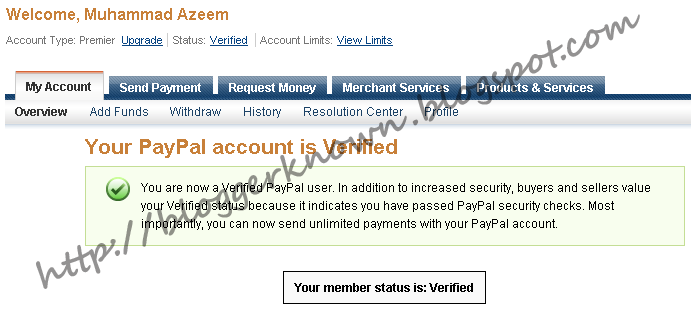
Your PayPal Account Verified Successfully. Enjoy 

PayPal

More

Search This Blog